Xyce Studio User Guide
Xyce Studio is a desktop application for simulating electronic circuits with the Xyce circuit simulator. You describe your circuit in a SPICE-style netlist, choose the analysis you want, run the simulation, and inspect the results as interactive plots — all from a single window.
Xyce Studio can be used in two ways:
- As a KiCad plugin — launched directly from the KiCad schematic editor. The netlist is extracted from your schematic automatically, so you can go from schematic to simulation results without leaving KiCad.
- As a standalone application — open Xyce netlist files (
.cir) or simulation output files (.raw,.prn,.csv,.csd,.dat) directly, edit them, and run simulations on your own schedule.
Both modes share the same window layout, dialogs, and plotting tools, so everything in this guide applies to both unless explicitly noted.
Contents
- Installation and a First Simulation tutorial
- The Main Window
- Configuring the Xyce Executable
- Running Simulations
- Operating Point (.OP)
- Transient (.TRAN)
- DC Sweep (.DC)
- AC Analysis (.AC)
- Noise (.NOISE)
- Harmonic Balance (.HB)
- Linear Analysis (.LIN)
- Directives: .PRINT, .FFT, .FOUR, .MEASURE
- The
.PLOTDirective — declare the default charts of a run - Simulation Output Files
- Viewing Results
- Troubleshooting
A typical workflow
- Launch Xyce Studio from the KiCad schematic editor (or open a netlist file in the standalone app).
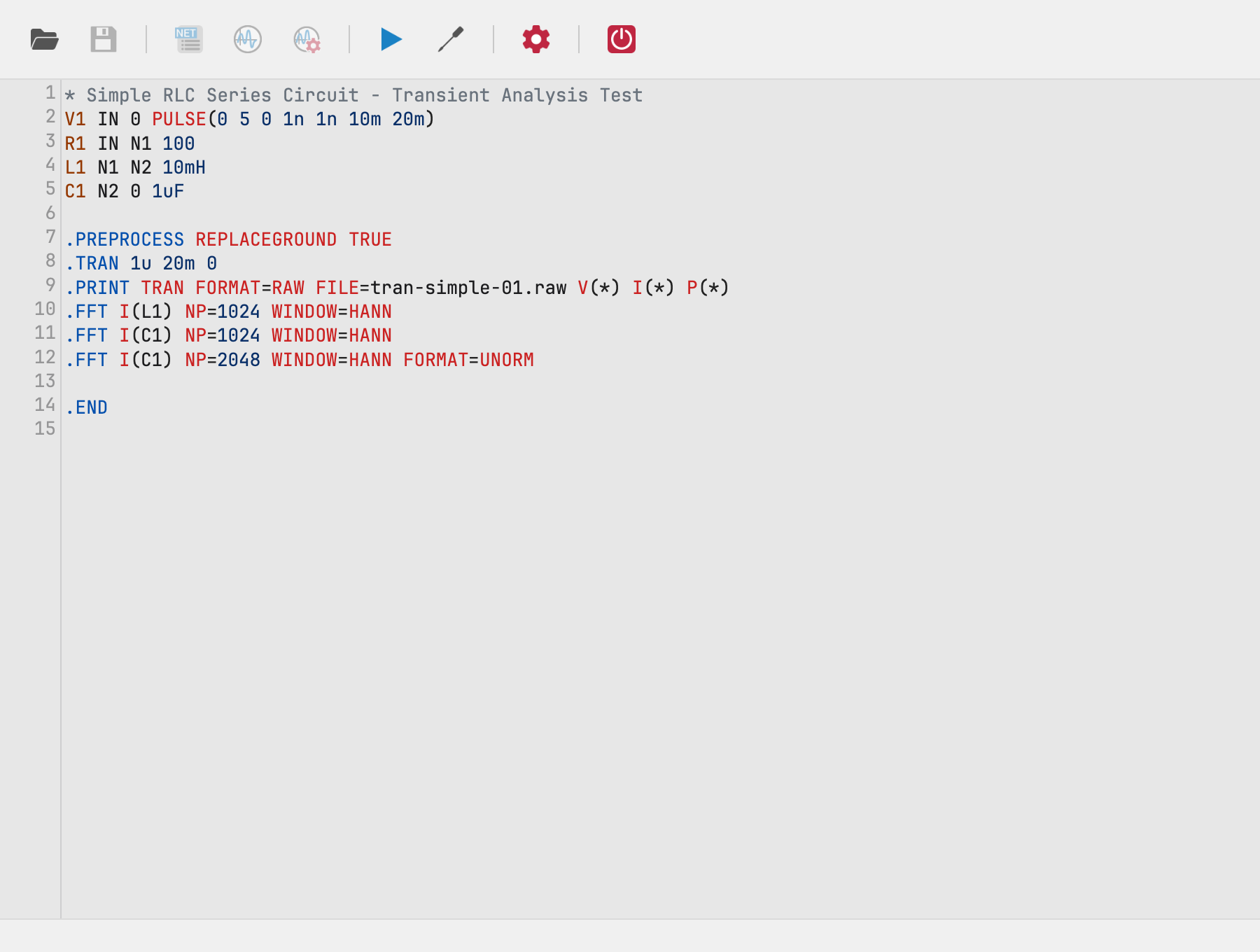
- Review the netlist in the built-in editor.
- Click Configure in the toolbar and set up the analysis parameters.
- Click Run Simulation and watch the status bar.
- Switch to the charts view, pick the expressions you want to plot, and analyze the waveforms — zoom, hover readouts, FFT, and parametric step filtering are all available.
Units and numbers
All numeric fields accept standard SPICE engineering suffixes: 1n
(nano), 2k (kilo), 25m (milli), 5u (micro), 10MEG (mega), 1G
(giga), and so on. This matches the notation used in netlists, so values
can be copied between the dialogs and the editor verbatim.