Installation
Requirements
Minimum operating system
The packaged binaries are compiled against these minimum OS versions
(macOS: the deployment target is set at build time, see
CMAKE_OSX_DEPLOYMENT_TARGET in CMakeLists.txt):
| Platform | Minimum version |
|---|---|
| macOS | macOS 13.3 Ventura (Apple silicon and Intel) |
| Windows | Windows 10 or newer (64-bit) |
| Linux | Ubuntu 24.04 LTS or any distribution with glibc 2.39+, on X11 or Wayland |
Software
- KiCad 10.0 or newer (only needed for the KiCad plugin mode)
- Xyce installed somewhere on disk — Xyce Studio drives the Xyce executable; it does not bundle a simulator. The path is configured on first use (see Configuring the Xyce Executable).
KiCad plugin
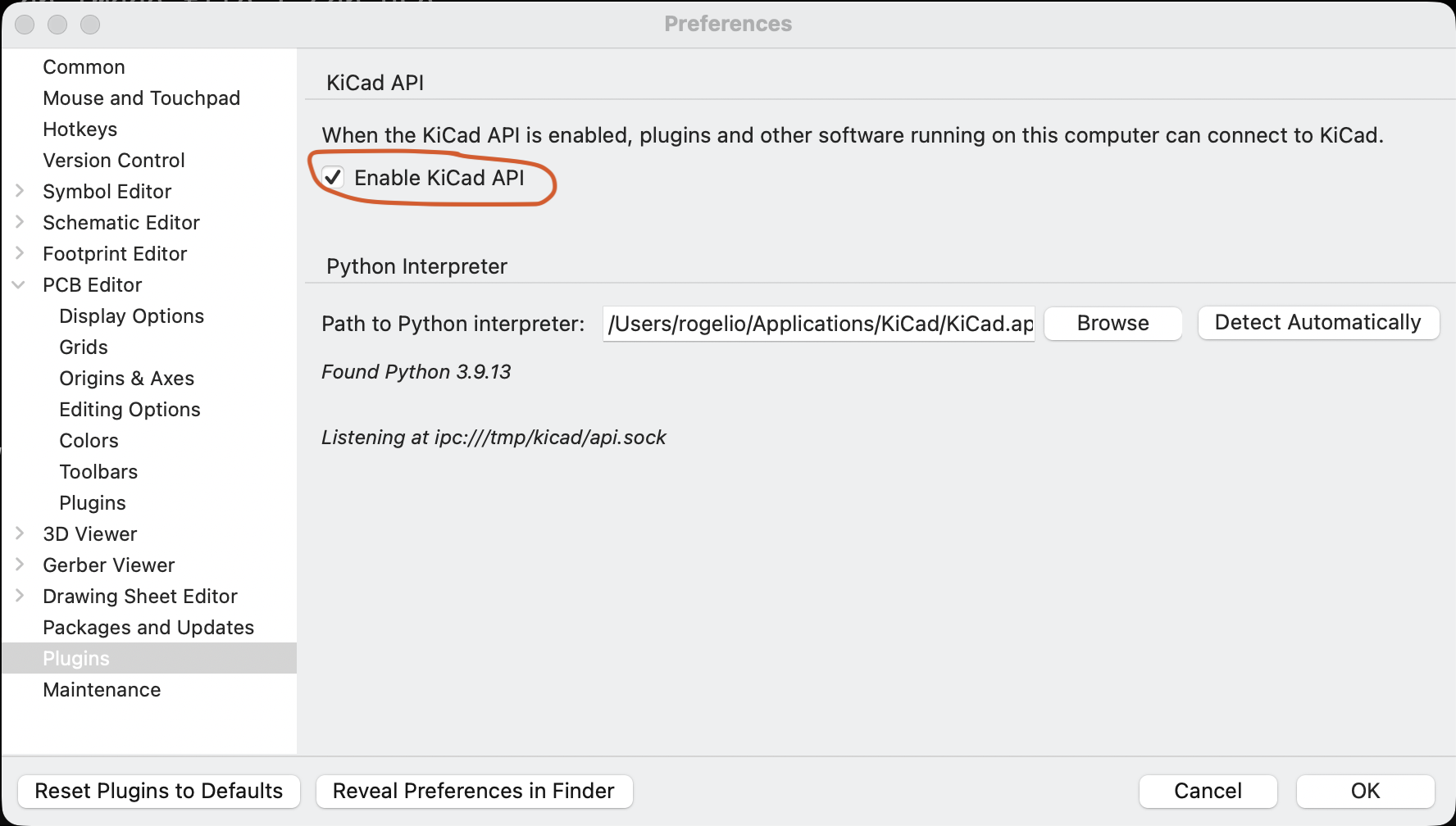
Step 1: Enable the KiCad API
- Open KiCad.
- Go to Preferences → Settings → API.
- Enable KiCad API.
Step 2: Restart KiCad
Restart KiCad so the KiCad API server is available.
Step 3: Download the plugin package
Download the latest release from github.com/spice-projects/xyce-studio/releases/latest.
Pick the package for your platform: kicad-xyce-plugin-macos.zip or
kicad-xyce-plugin-windows.zip.
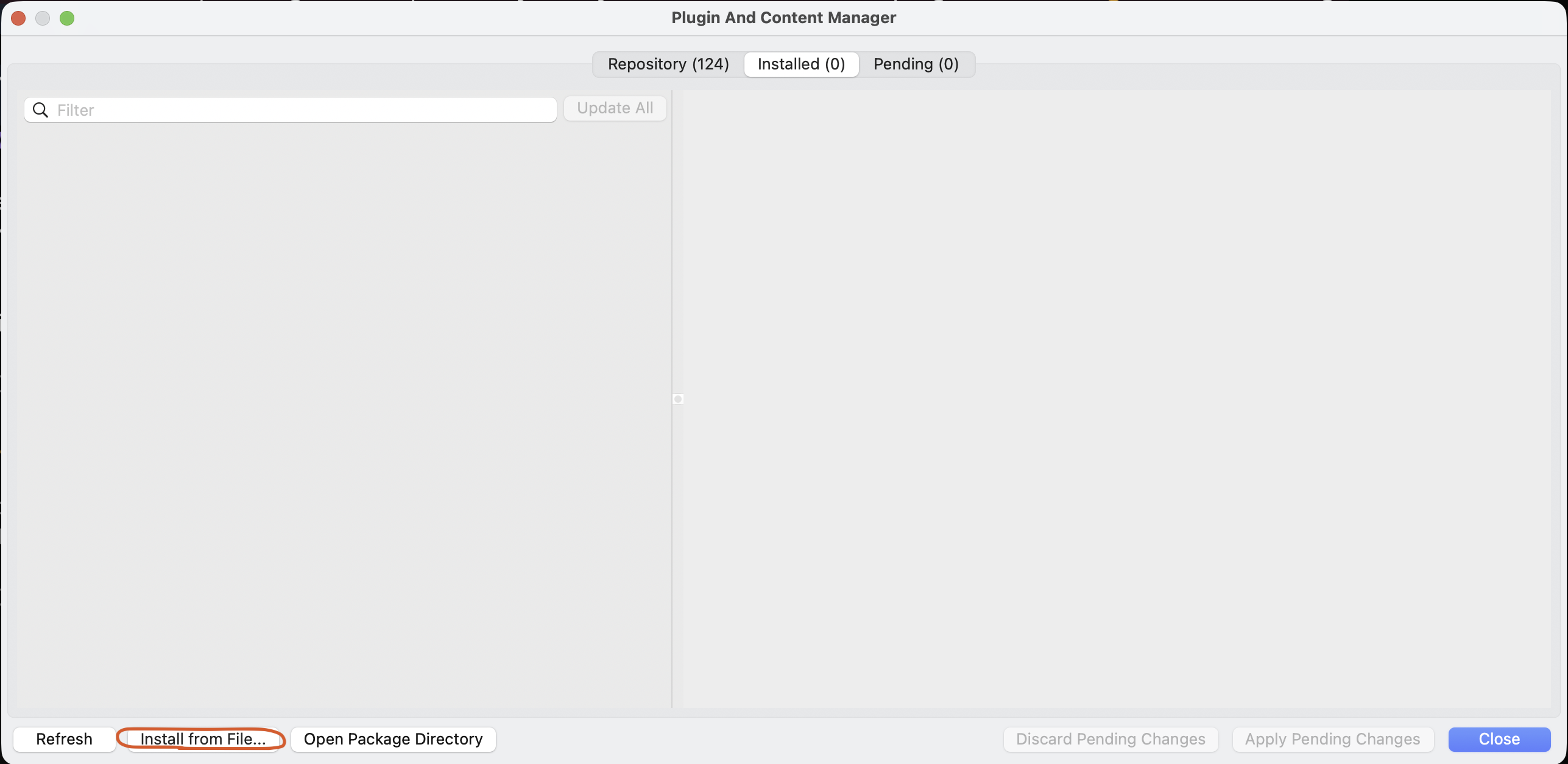
Step 4: Install the plugin
- Open KiCad.
- Go to Tools → Plugin Manager (or Preferences → Plugin Manager).
- Click Install from File... and select the downloaded
.zipfile.
Step 5: Restart KiCad
Restart KiCad so the newly installed plugin is loaded and registered.
Step 6: Launch Xyce Studio
Open a schematic project. The plugin appears as a toolbar button in the schematic editor — Run Xyce Circuit Simulator. Click it to launch the simulator with your schematic already netlisted.
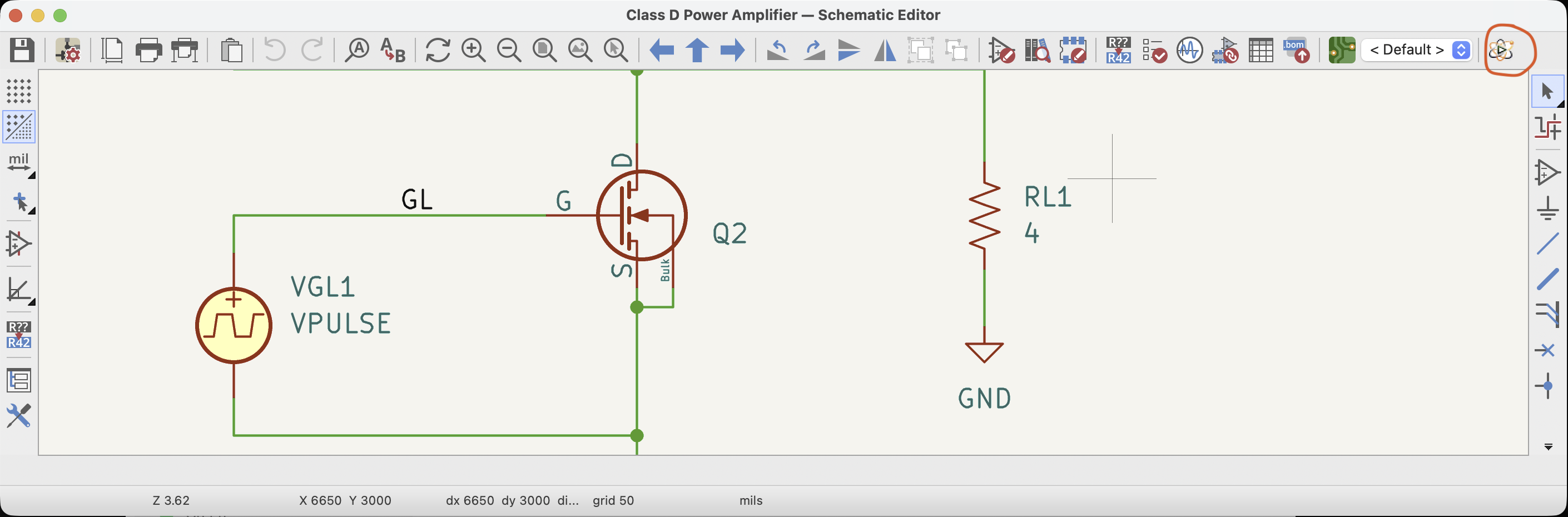
When launched from KiCad, Xyce Studio extracts the schematic netlist automatically and places it in the built-in editor. The editor is read-only in this mode — edit your schematic in KiCad and relaunch to pick up changes.
Standalone application (macOS)
- Download
xyce-studio-macos.zipfrom the latest release. - Unzip it and drag
Xyce Studio.appto your Applications folder.
The standalone app does not connect to KiCad: it opens netlist files
(.cir), runs simulations, and visualizes the output. It can also open
Xyce simulation output files (.raw, .prn, .csv, .csd or .dat)
directly — useful for re-examining results from a previous run or analyzing
output produced by a command-line Xyce session.